Easy to pick up.
Deep when you need it.
Step-by-step help for every part of pzip, from first launch to encrypted archives.
Getting started
- Download and install the APK from the download page.
- Open pzip and take the short tour — Skip if you are in a hurry.
- Allow All files access. This is required; pzip cannot manage your storage without it.
- Optionally allow notifications (for progress of long tasks) and app installs (to install APKs you open).
- Pick a theme and accent colour, and choose whether to set up a PIN lock now.
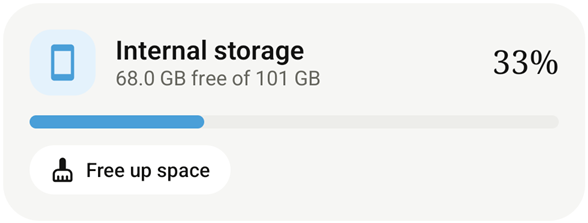
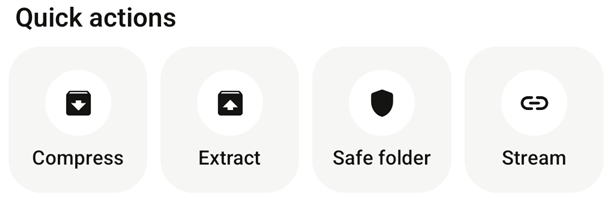
The Home tab shows each storage volume with free space, four quick actions — Compress, Extract, Safe folder and Stream — and categories such as Images, Videos, Audio, Documents, Archives, APKs and Downloads. Recent files, favourites and recent archives appear below.
Files
Open the Files tab to see your storage volumes, favourites, common folders, the Safe folder and Trash.
Select and act
Long-press any item to start selecting. The selection bar offers Compress, Copy, Move, Delete and More (Rename, Extract here, Share, Move to Safe folder, Shred, Details). Copy and Move put items on a clipboard bar — open the destination folder and tap Paste.
Sort, view and search
Use the overflow menu for sort order, grid or list view, hidden files, new folder and new text file. The search field on Home searches all storage; inside a folder, the filter narrows just that folder.
Delete safely
Deleting moves items to Trash by default. Tick “Delete permanently” to skip it, or use Shred to overwrite a file before removal.
Archives
Create an archive
- Select files or folders and tap Compress.
- Pick a format: ZIP, 7Z, TAR, TAR.GZ, TAR.XZ or TAR.BZ2.
- Slide the level from Store (fastest) to Best (smallest).
- For ZIP, add a password and choose AES-256 (recommended), AES-128 or ZipCrypto. Tap Generate for a strong password.
- Optionally split the ZIP into parts, delete the originals afterwards, or choose another save folder.
Open and extract
Tap an archive to browse it like a folder. Badges show if it is encrypted, solid or multi-volume. Select entries and tap Extract, or extract everything to a new folder, the current folder or one you pick. Choose what happens if a file exists: keep both, replace, skip or replace if newer.
More options
From the archive menu you can test integrity, view info, convert to another format, share it, and — for ZIP — add, delete or rename entries. For multi-part sets, open the first part (.part1.rar, .7z.001, .zip or .z01).
Player
Tap any video or audio file to play it. Controls hide after a few seconds — tap once to bring them back.
| Gesture | Action |
|---|---|
| Swipe up/down on the left | Brightness |
| Swipe up/down on the right | Volume, up to 200% |
| Swipe sideways | Seek with a preview |
| Double-tap left / right | Back / forward 10 seconds |
| Double-tap centre | Play / pause |
Panels
Audio — tracks, delay, boost and equalizer presets. Subtitles — pick a track, load a file, adjust delay. More — repeat, shuffle, rotation, sleep timer, A–B repeat, decoder, chapters, background play, record and media info.
Streams
Tap Stream on Home (or Tools → Open network stream) and paste an HTTP, HLS, RTSP or RTMP link. Availability depends on the source.
If a video shows an error, tap Try software decoding.
Gallery & viewers
The Gallery tab has Photos (grouped by month), Albums (by folder, Camera first) and Videos. In the viewer, swipe between photos, pinch to zoom up to 8× or double-tap to zoom. Use the toolbar to share, rotate, start a slideshow, view details or delete; the menu sets a wallpaper, saves rotation or opens the photo in another app.
PDFs, text and code files open in built-in viewers with sharing, wrap and font size controls. Other files open with the app you choose.
Clean & Trash
- Open the Clean tab and let the scan finish — scanning never deletes anything.
- Open a category to review its files. Junk, empty folders and duplicate copies are pre-selected; large files, old downloads, old screenshots and install files are not.
- Adjust the selection and confirm. Items go to Trash if Trash is on.
For duplicates, pzip keeps the oldest copy as the original. Open Trash from the Files tab to restore items (they return to their original folder) or empty it. Items are removed automatically after 30 days. The Storage analyzer in Tools shows which folders use the most space.
Safe folder & app lock
Safe folder
Tap Safe folder on Home and set its PIN. Move files in from any selection (More → Move to Safe folder). Files are encrypted with AES-256-GCM and the originals are deleted. Use Move out to decrypt a file back to storage. Tap Lock when you are done; this also clears preview caches.
Important: the Safe folder key lives in this phone’s secure hardware. If you uninstall pzip or reset the phone, files still in the Safe folder cannot be recovered. Move them out first.
App lock
In Settings → Privacy & security, turn on App lock and choose a 4–8 digit PIN. You can also allow fingerprint unlock. pzip locks again after 60 seconds in the background. Turn on Block screenshots to hide pzip from recents and screen recordings.
Tools
- Checksums — pick a file to compute CRC32, MD5, SHA-1, SHA-256 and SHA-512 at once. Tap a value to copy it, or paste a published hash to compare. Prefer SHA-256 or SHA-512 for security checks.
- Password generator — 20-character passwords without look-alike characters.
- Benchmark — compare compression speed and ratio for ZIP, 7Z and TAR.BZ2 on your phone.
- Operations — follow long tasks, see speed and time left, cancel, retry or enter a password for a failed extract. The arrows icon on Home opens it too.
- Secure shred, Storage analyzer, Trash, Music and Now playing shortcuts.
Settings
| Section | Options |
|---|---|
| Appearance | Light, dark or system theme · Sky, Mint, Lavender or Peach accent |
| Compression | Default format and level · delete files after compressing |
| Extraction | Extract into a new folder · open folder when done · overwrite rule |
| Files | Show hidden files · use Trash · remember recent archives |
| Player | Resume playback · swipe gestures · haptic feedback |
| Privacy & security | App lock · fingerprint · block screenshots · clear temporary files · clear history |
Install help
“App not installed”
This usually means an older test build with a different signing key is installed. Move files out of the Safe folder, uninstall the old build, then install the official APK.
“There was a problem parsing the package”
The download was incomplete or the APK does not match your processor. Download again, or pick the universal APK.
pzip can’t see my files
Open Android Settings → Apps → pzip → Permissions and allow All files access.
Found a bug?
Open an issue on GitHub with your Android version, phone model and steps to reproduce. Please don’t attach private files.